Ši puslapis dar nėra jūsų kalba, todėl rodomas anglų kalba.
One QR code, different views
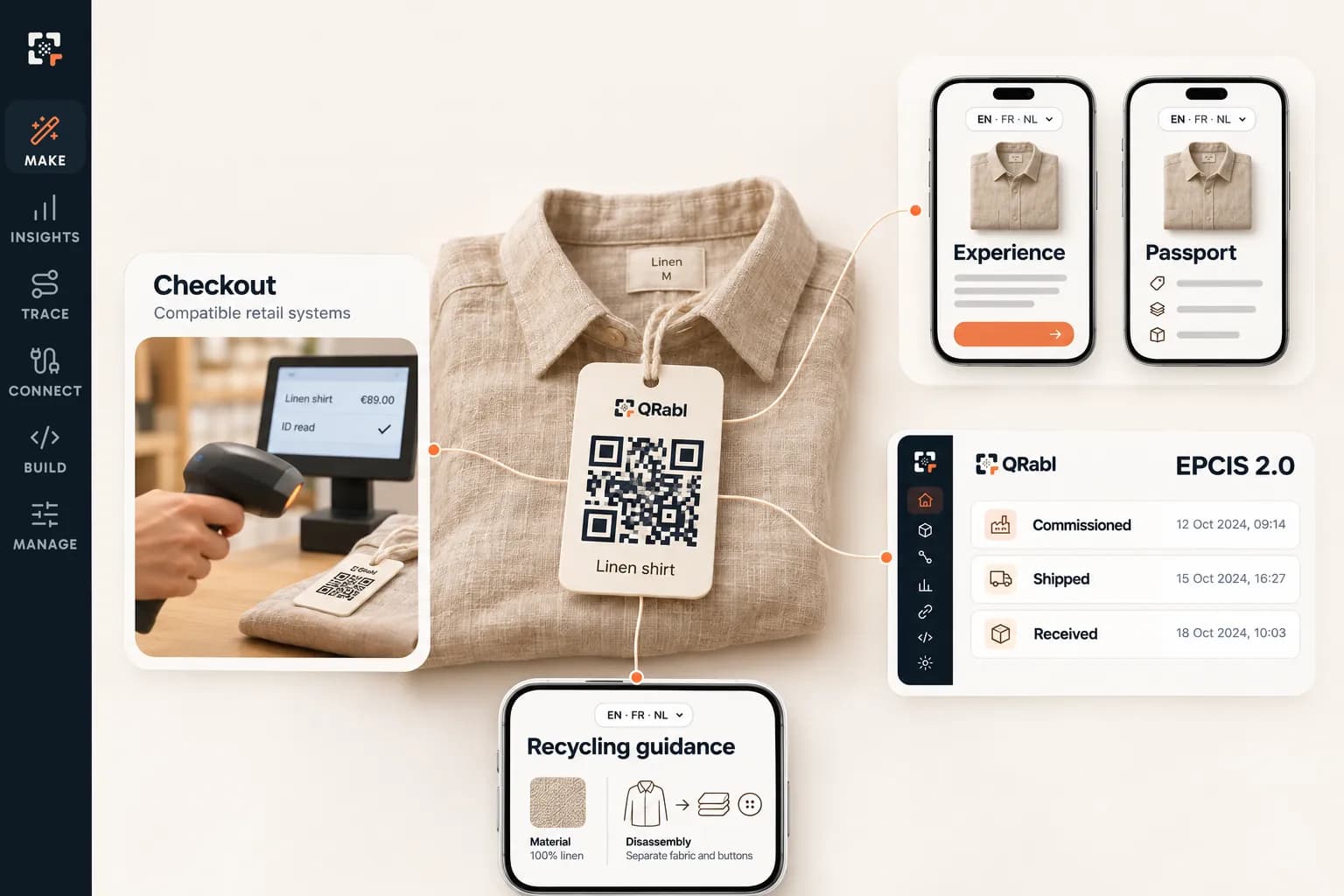
A shopper, a warehouse handler and an inspector scan the same code. Each should see what they need, and nothing that isn't meant for them.
Label for shoppers
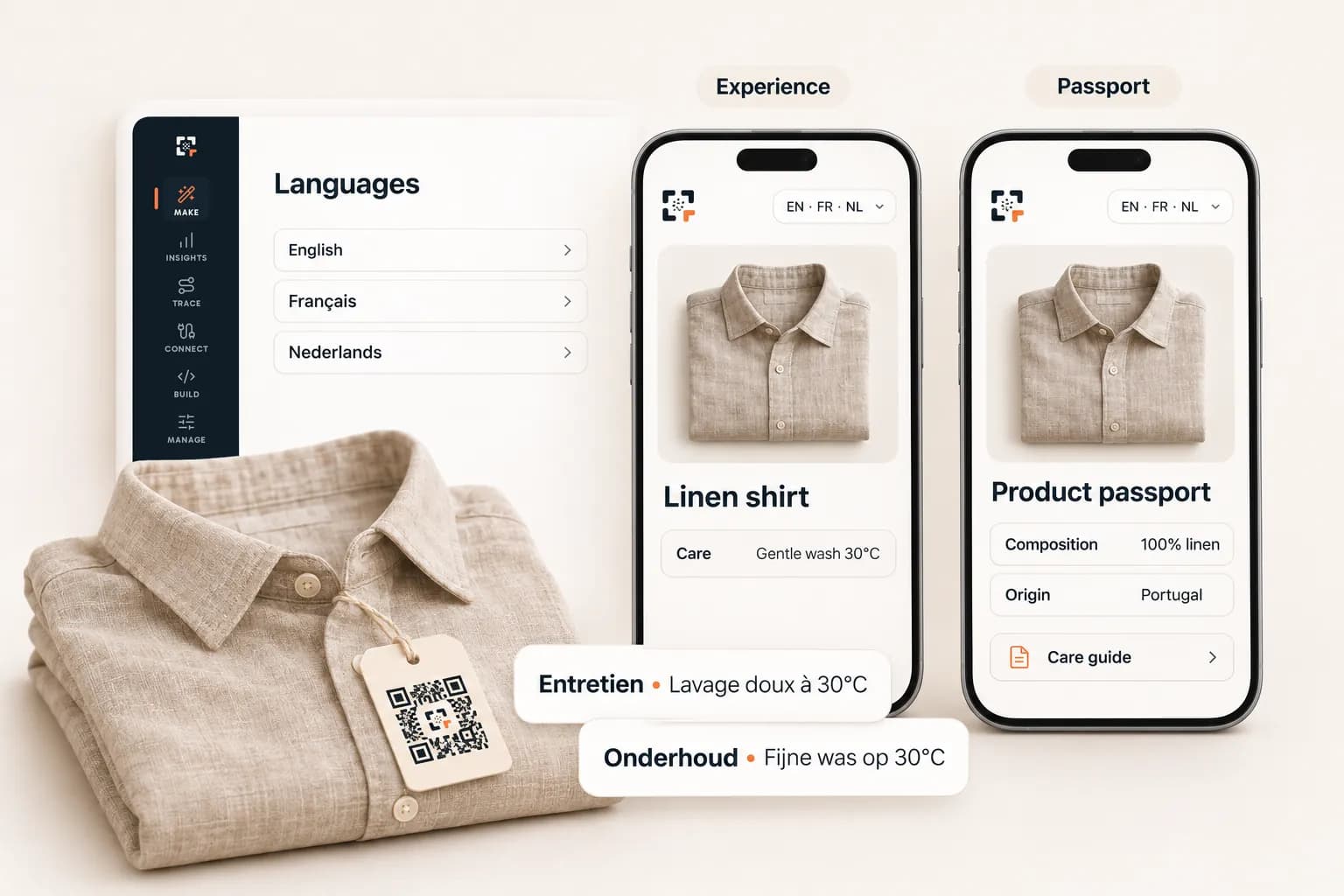
The public label page shows what shoppers need at the shelf, in their own language.
Experience view
The brand story behind the product, designed in the label editor, behind the same code as the passport.
Passport view
The structured passport data from your compliance pack, laid out field by field.
Handler access by PIN
Staff and handlers enter a PIN at the code to see extra information. They don't need a QRabl account.
Authority, recycler and repairer views
Each professional role sees the fields it needs, from test reports for inspectors to dismantling information for recyclers.
EU Digital Identity Wallet verification
Professionals prove their role with the EU Digital Identity Wallet, and the passport opens the matching view.
Passport version history and change view
RoadmapLook back at earlier versions of a passport and see what changed between them.
Circularity actions
RoadmapA repair and spare-parts card, a return-and-recycle card, lifecycle events recorded by professionals with a PIN, and ownership transfer for second-hand products.
Who this is for
Brands whose products are scanned by more than one kind of person: shoppers, shop staff, warehouse handlers, service partners, repairers, recyclers and inspectors. And the partners who set this up for their clients.
The problem
One product has many readers. A shopper wants to know what is in the product and how to use it. A handler needs batch and handling details. An inspector needs the test reports and the conformity data.
Printing a different code for each reader is not practical. Putting everything on one public page doesn't work either: shoppers get data they can't use, and data meant for professionals ends up on a public page.
What a scan shows
In short: the Experience page is for shoppers, the Passport is the official record, and handlers see more with a PIN.
The Label, the Experience view and the Passport view
One QR code leads to three views:
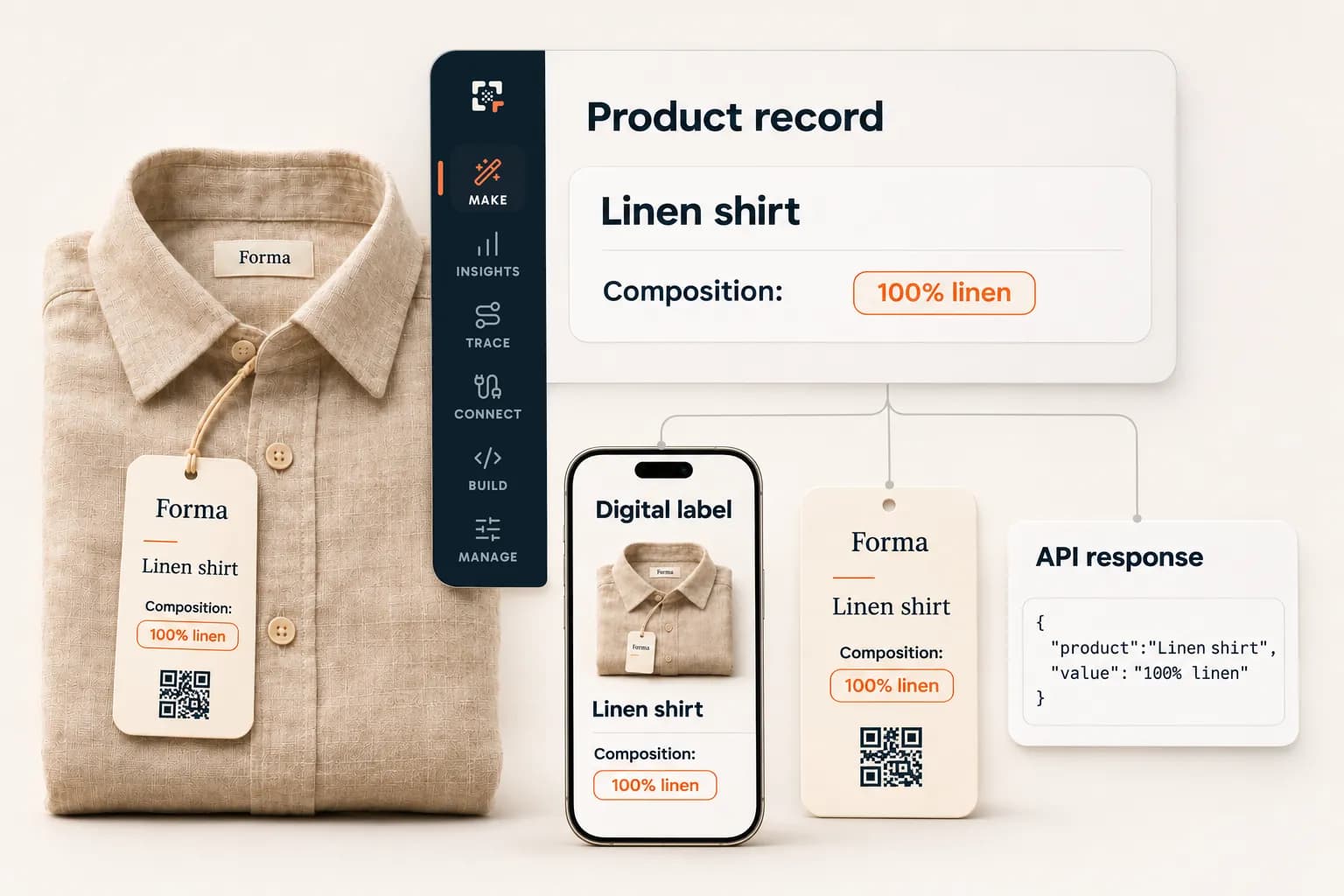
- The Label shows what shoppers need at the shelf, in their own language. You design it in the label editor and choose a styled QR code to match your pack.
- The Experience view tells your brand story: who made the product, how to use it, what makes it different.
- The Passport view lays out the structured passport data from the compliance pack for your sector.
For each label you choose which view opens on a scan. Change the setting and the next scan follows it. You don't reprint the code and you don't republish the passport.
Compliance packs mark which fields are meant for the public and which are meant for professionals. The public views show the public fields.
Handlers: a PIN at the code
You add handlers in your dashboard, such as warehouse staff or service partners, and give each one a PIN. At the code, the handler enters the PIN and sees the extra information you set for them. They don't need a full QRabl account.
Repeated wrong PINs lock the handler out for a while, so a PIN can't be found by trial and error. You can switch a handler off or revoke their access at any time.
Authorities, recyclers and repairers
Separate views for market surveillance authorities, recyclers and repairers, each with the fields that role needs:
- Inspectors see test reports, conformity data and the evidence behind the passport.
- Recyclers see material composition and dismantling information.
- Repairers see spare parts and repair information.
EU Digital Identity Wallet verification
A professional proves their role with the EU Digital Identity Wallet, and the passport opens the view for that role. Inspectors don't need a separate login for every brand they check.
Passport version history and change view Roadmap
Look back at earlier versions of a passport and see what changed between them.
Circularity actions Roadmap
- Repair and spare-parts card on the passport.
- Return-and-recycle card on the passport.
- Lifecycle events recorded by professionals with a PIN.
- Second-hand ownership transfer when a product is resold.
How you set it up
- Choose the compliance pack for your sector. It brings the fields, with help text and required fields.
- Fill in the product data, then design the digital label and the Experience view.
- Choose which view opens when someone scans.
- Add handlers and give them PINs.
- Review the passport and publish it.
The code on the pack stays the same through every step. You can change views, handlers and content after printing.
Related
The address behind the code, and how machines read it, is explained on the GS1 Digital Link and JSON-LD page. How handlers fit into recalls and supply-chain tracking is on Track & Trace and operator PIN.
Next step
Book a consultation to set up the views for your products. If you deliver passports for clients, read about the partner programme.